

Understanding statistics
The statistics bar at the top of the table gives you an overview:
- Available credits the number of words you can still translate
- Validated translations percentage of strings marked as verified
- Total channels all text segments detected on your site
- Chains to be validated segments awaiting human verification
- Pages with translation the total number of pages on your site
- Number of source words volume of content in your main language

Table contents
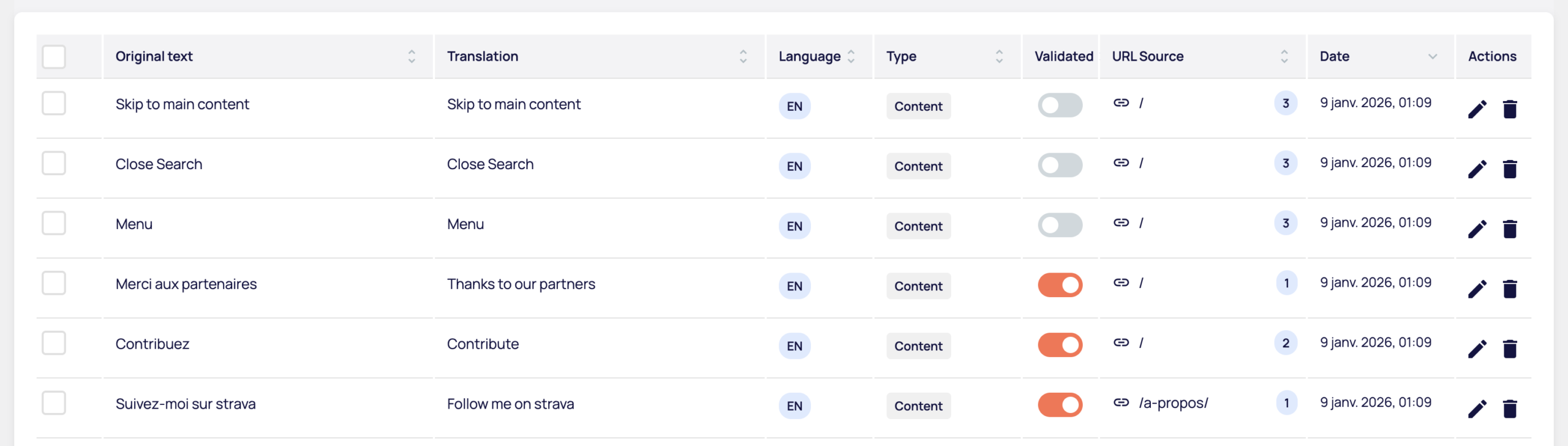
Each line represents a text segment and displays :
- The original text and its translation
- The target language
- Content type
- Validation status (enabled/disabled)
- Source URL to contextualize the segment
- Detection date
- Available actions (modify, delete)
Edit a translation
Click on the pencil icon to edit a translation directly in the table. Good news: editing an existing translation doesn't consume any credits. Credits are only used for the initial translation of a new segment.
Validate a chain
The validation toggle is an internal organization tool. It allows you to indicate that a translation has been checked by a human, but has no impact on the public display. A non-validated translation is displayed as normal on your site - the toggle is simply used to track your progress.
Managing orphan texts
Orphan texts are segments that have been translated in the past, but are no longer present on your site (page deleted, menu modified, widget removed, etc.).
You'll easily recognize them:
- Line background grayed out
- The "Source URL" column displays "Orphan text".
Why does Tricot keep them? If the content reappears (reactivation of a page, return of a seasonal element), the translation will be reused automatically, without consuming new credits.
You can remove these strings manually if you prefer to keep the picture uncluttered. It's up to you.
Filter table
Four filters allow you to target exactly what you want to work on:
- Language to focus on a specific target language
- Status to display only validated or unvalidated channels
- Type to isolate a type of content (title, paragraph, button, etc.)
- Source URL for page-by-page working
Filters can be combined. Click on "Apply" to refresh the display, or on "Reset" to clear everything.
Customize display
The "Columns" button lets you hide superfluous information. Simply uncheck the columns you don't need: original text, translation, language, type, validated, source URL or date.
Handy on a smaller screen or when you're concentrating on a specific aspect of your translations.
Exporting and importing your translations
CSV export
Export generates a file containing :
- The unique identifier of each chain
- Source text
- The current translation
- Validation status (yes/no)
Ideal for working offline, sharing with external reviewers or creating a backup.
Change validation status
In the exported file, you can manually change the validation value :
- "no" → "yes" to mark a translation as validated
- "yes" → "no" to withdraw validation
CSV import
Then re-import the file into Tricot. The system will update the status automatically. This is the most efficient way to batch validate after an external review.
