

1. Activate your license
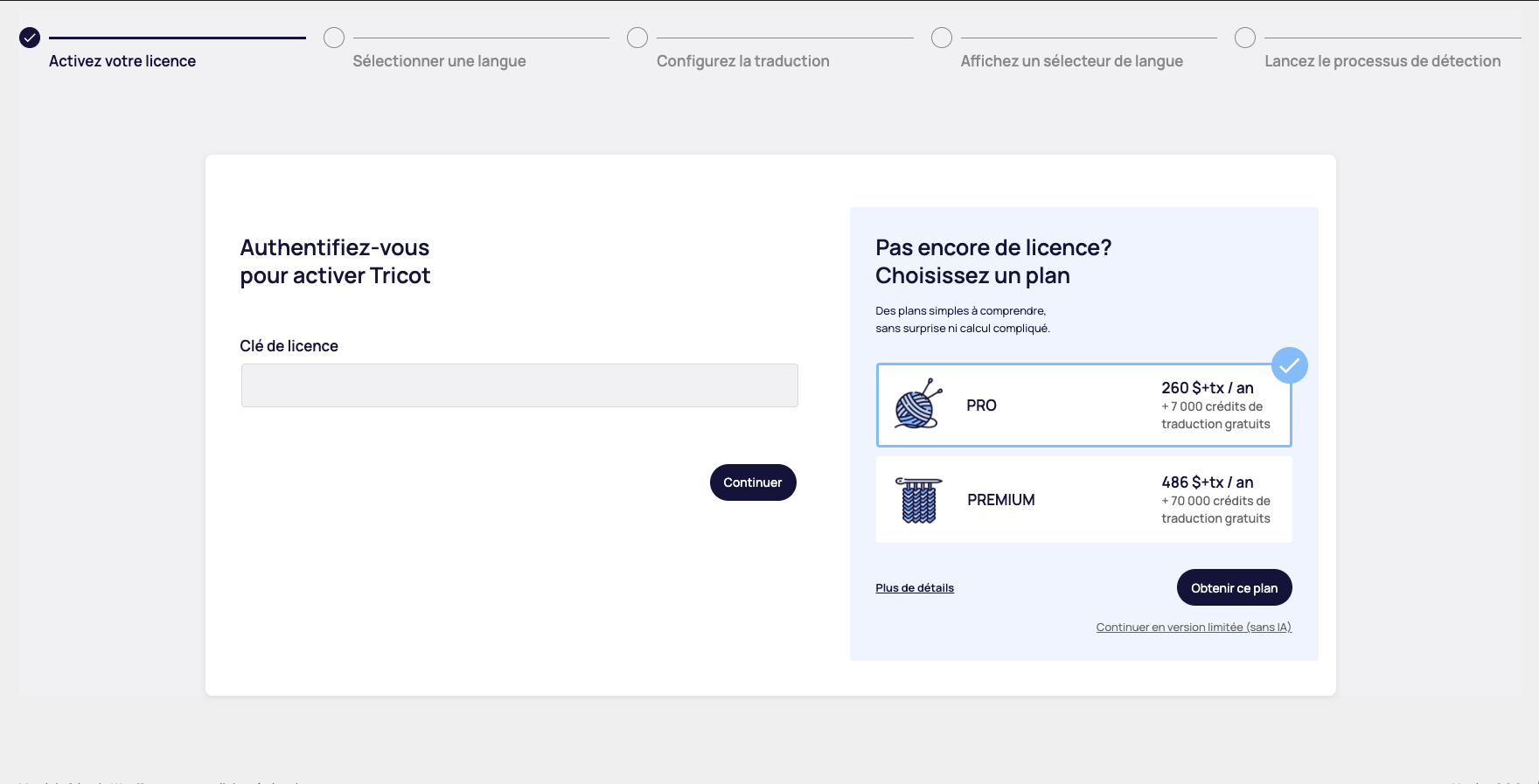
This first step is crucial to unlocking all Tricot's features. You have two options, depending on your situation:
If you already have a license :
- License key: Enter your unique license key in the field provided.
- Validation: Click on "Continue" to verify and activate your license.
If you do not yet have a license :
- Available plans: Two formulas are available to meet your needs
- PRO Plan: $260+tx / year
- Includes 7,000 free translation credits
- PREMIUM Plan: $486+tx / year
- Includes 70,000 free translation credits
- PRO Plan: $260+tx / year
Select the plan that suits you best. You will then be redirected to the Tricot application (tricotapp.com). Once your payment information has been processed, you will receive a confirmation e-mail containing your license key.
Note: A limited free version of the plugin is available. It allows you to test the interface and/or translate the site manually.
2. Select a language
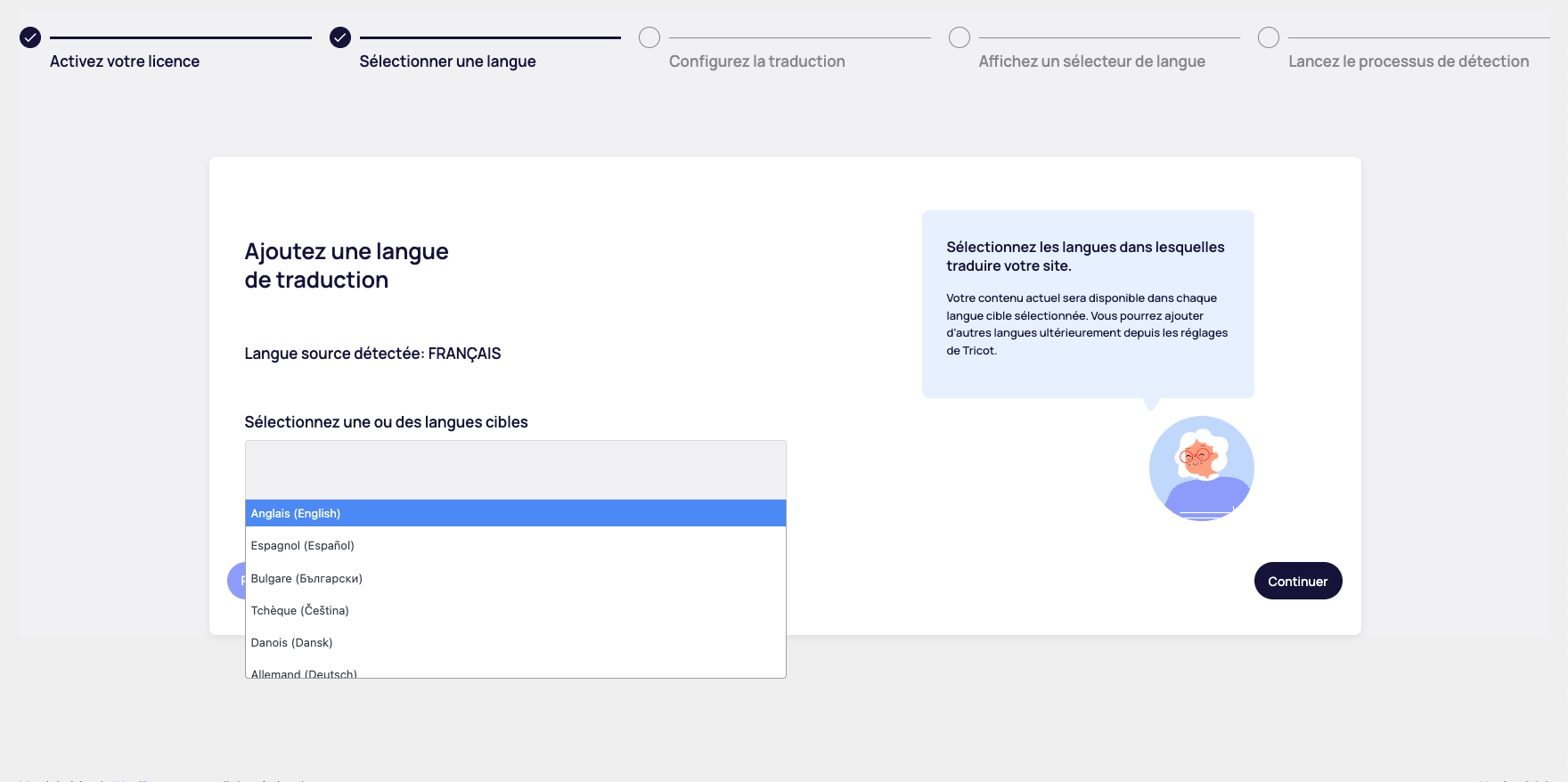
This step allows you to add translation languages to your site. The system automatically detects your source language.
Basic configuration :
- Source language detected The system automatically identifies the main language of your site (in this case: FRENCH). If the source language detected is not the correct one, you'll need to change the language in Worpdress settings (Settings -> General> Site language).
- Target languages Select one or more languages into which you wish to translate your content
Key points:
- Available content : Your current content will be available in each selected target language
- Add later You can add other languages after the initial installation from the Tricot settings.
- Multiple selection You can select several languages now or add them gradually.
3. Automatic translation settings
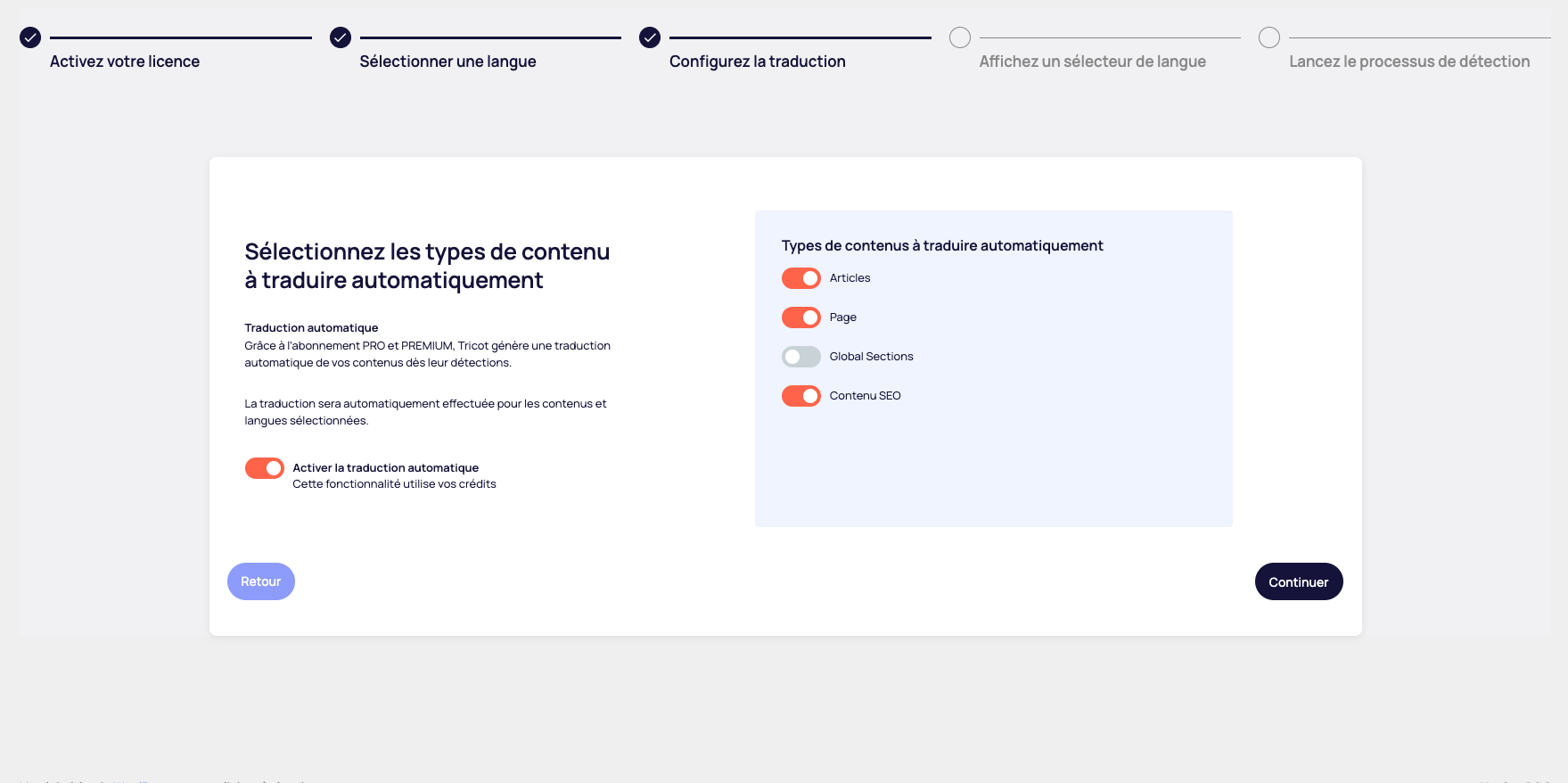
This step allows you to define which types of content will be automatically translated on your site. Note that this feature will use your credits.
How machine translation works :
- Subscription required : Requires PRO or PREMIUM subscription
- Automatic generation Tricot automatically generates a translation of your content when it is detected.
- Selected languages : Translation will be performed for the content and languages you select
This section will be locked if you do not have a PRO or PREMIUM subscription. Simply click on the Continue button to access the next step.
4. Language selector display configuration
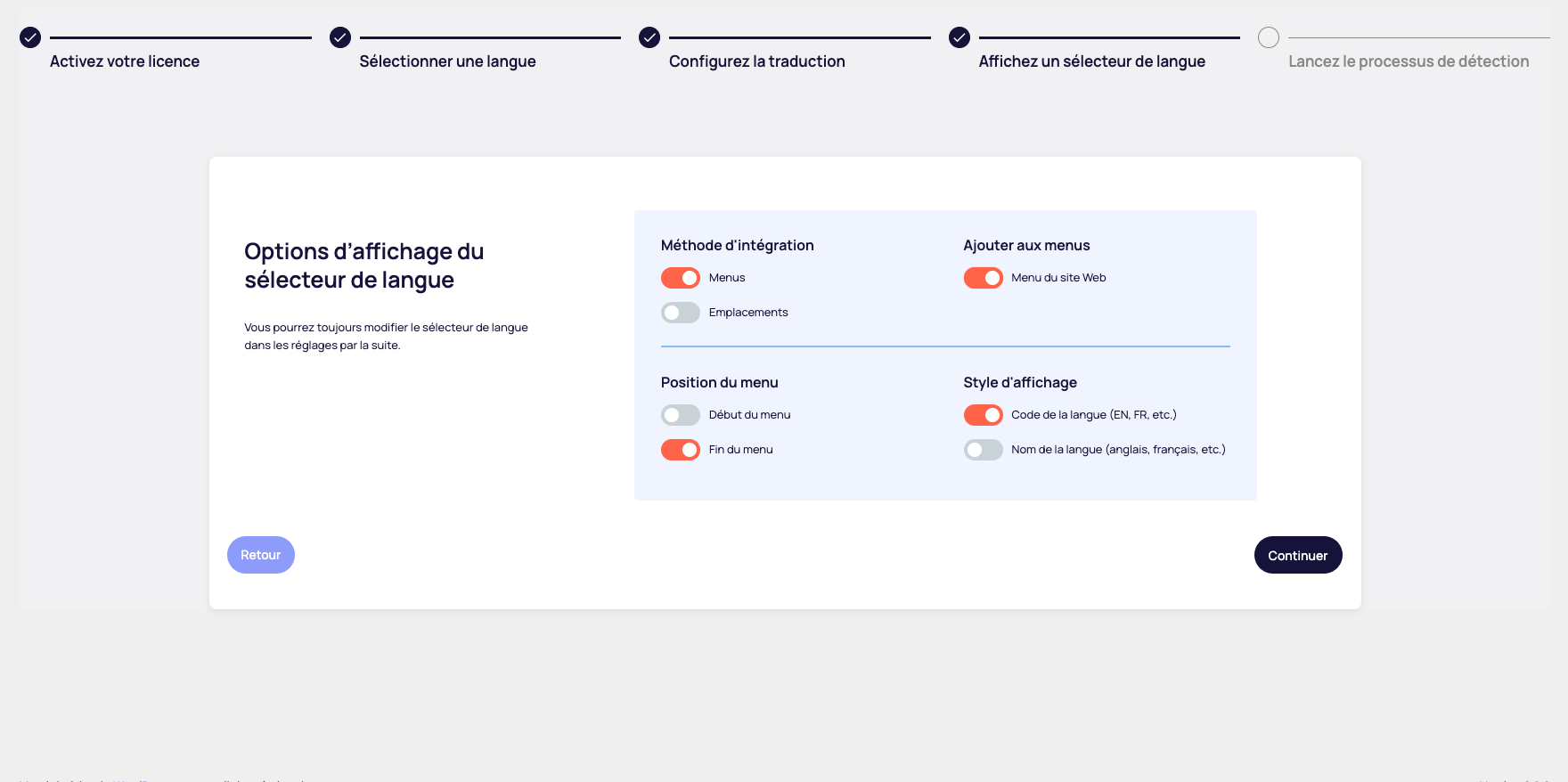
Customize the way your visitors can switch languages on your website.
Configuration options :
Integration method :
- Menus : Integration into existing navigation menus
- Locations Positioning via widgets or shortcodes
Menu position :
- Menu start Places the selector at the beginning of your navigation menu
- End of menu Places the selector at the end of your navigation menu
Display style :
- Language code Displays ISO codes (EN, FR, etc.)
- More compact
- Ideal for sites with many languages
- Language name : Displays full name (English, French, etc.)
- More explicit for visitors
- Recommended for up to 2-3 languages
Post-configuration customization :
You can still change these settings after installation from the Tricot settings.
5. Finalize and launch
Congratulations! You've successfully completed all the configuration steps. Tricot is now ready to transform your site into a high-performance multilingual platform. This final step marks the start of your international adventure with a website accessible in several languages.
